This guide is for the people who run a community on Reciti: property managers, board members, and anyone else with an Administrator account. It covers how to sign in, where things are, and the handful of tasks that come up in the first few weeks. Residents have their own guides for joining and booking, and you can send those pages to anyone.
1. Sign in
Your account starts from an invitation email from Reciti. Tap Accept your invitation, enter your email address, and follow the sign-in link or 6-digit code in the message that arrives. There are no passwords. The steps are the same ones residents follow, so the joining guide applies to you as well. If you never received an invitation, or you're taking over from a previous manager, write to support@reciti.app and we'll sort out your access.
2. Find your way around
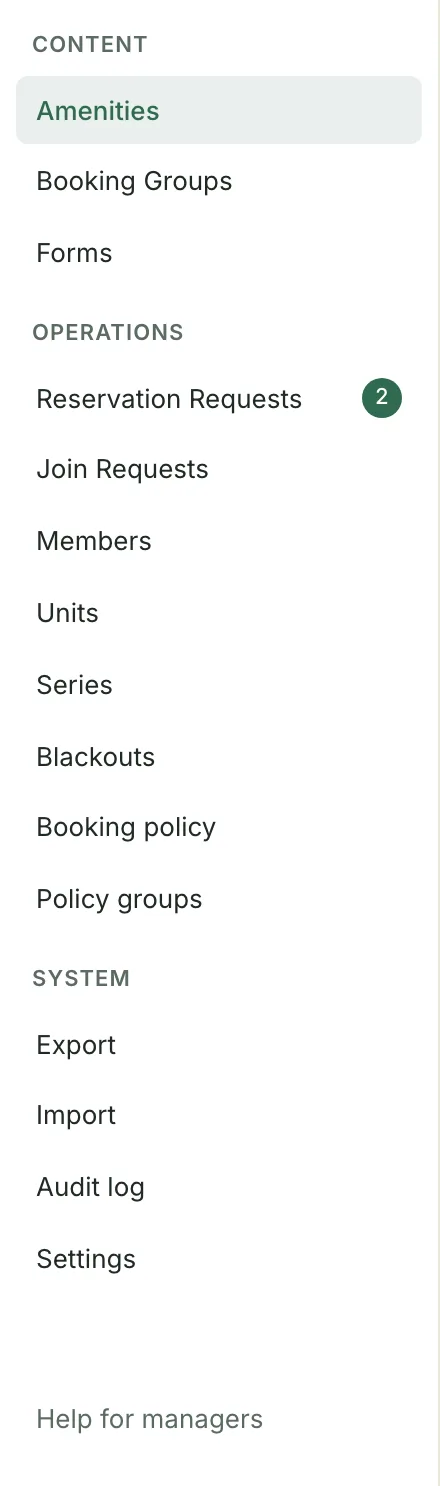
Once you're signed in, open the Admin area from the top menu. On a computer the sections are listed down the left side, and on a phone they scroll across the top. Content covers what residents can reserve: Amenities, Booking Groups, and Forms. Operations is the day-to-day work: Reservation Requests, Join Requests, Members, Units, Series, Blackouts, Booking policy, and Policy groups. System holds Export, Import, the Audit log, and Settings.
3. Check your amenities
Reciti sets up your first amenity with you before launch. Open Amenities in the admin area to see each one, then open an amenity to review its zones, operating hours, activities, and booking rules, such as the longest reservation allowed and how far ahead residents can book. Anything you change here shows on the resident calendar right away.
4. Invite residents
There are two ways to bring residents in, and most communities use both. Both live under Members, then Invite. If you have a resident list with email addresses, use Bulk invite to paste it in and you're done. If you don't, share the join link and decide whether you want to approve each person who uses it.
The join link
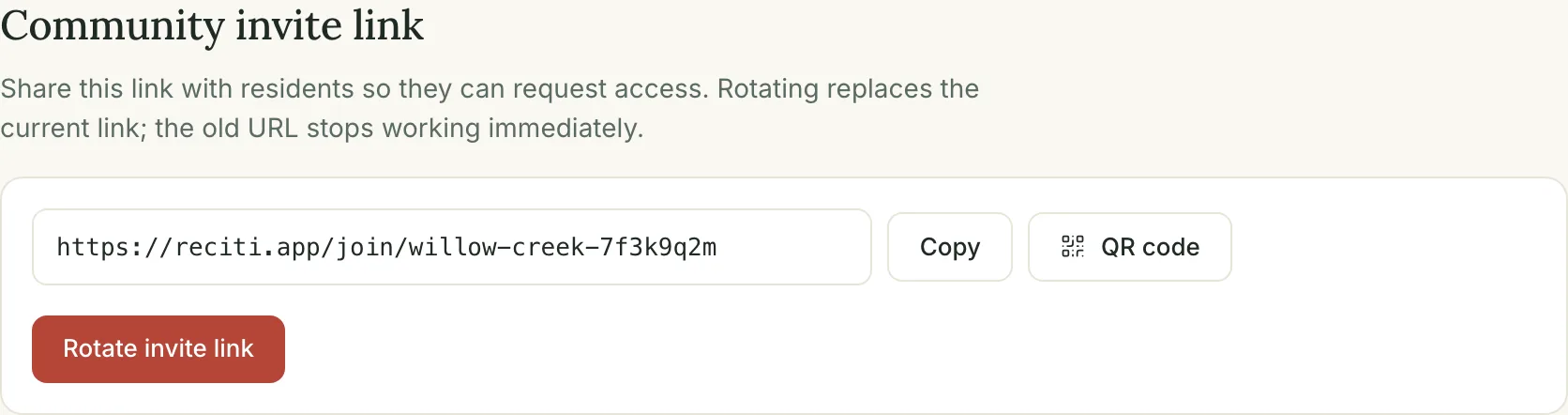
Your community has one join link that anyone can use, plus a printable flyer with a QR code for the clubhouse or mailroom. Share it in a newsletter, an email, or on the flyer. A resident who opens it enters their email address, confirms it, and adds their name and unit. If the link ever ends up in the wrong hands, tap Rotate invite link. The old link stops working right away and you share the new one.
Direct invites
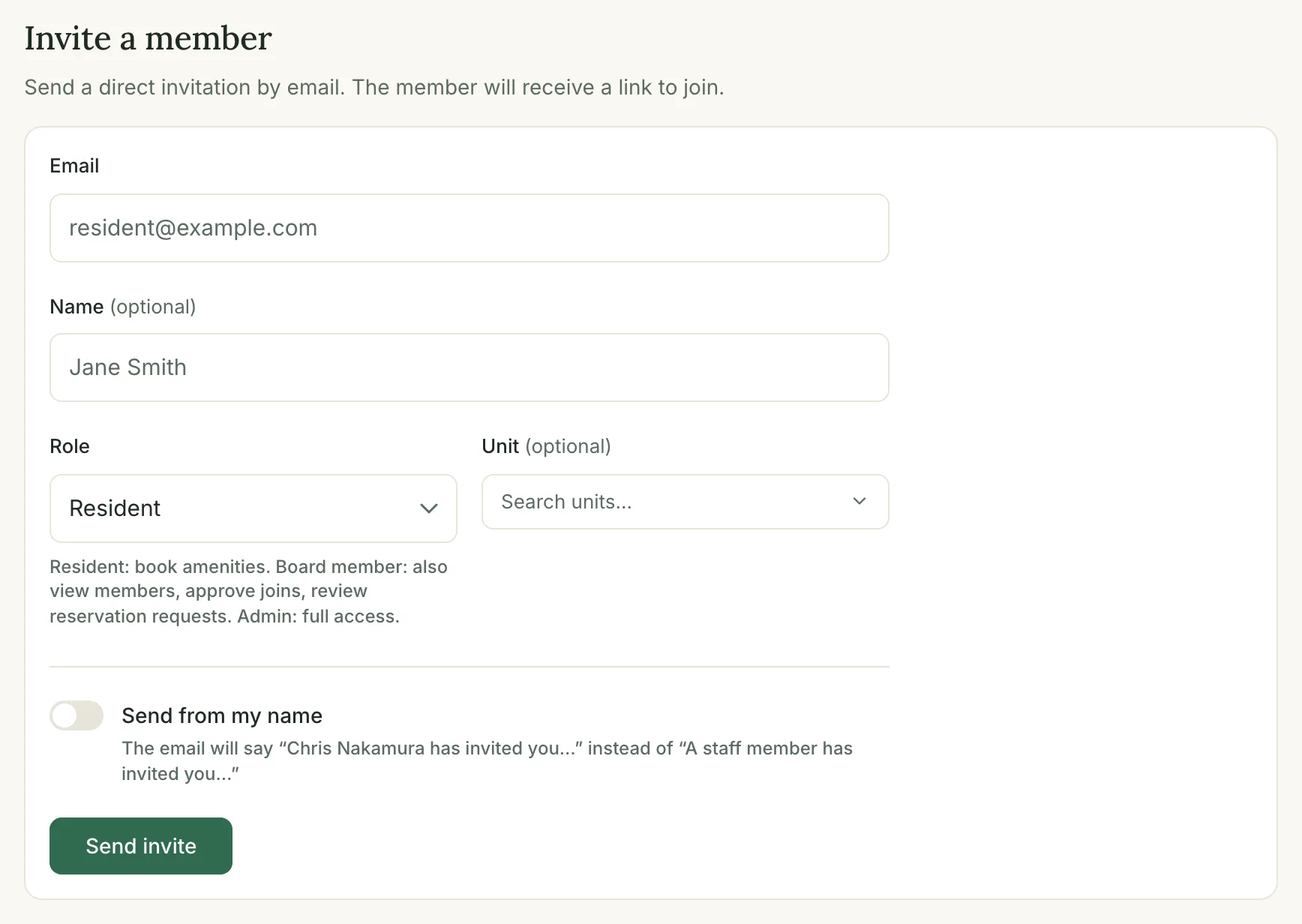
To invite a specific person, enter their email address on the Invite page. You can add their name and unit so the account is set up before they arrive, and this is also how you invite a board member or another administrator. To invite many residents at once, tap Bulk invite at the top of the page and paste a list of addresses, with a unit next to each one if you have it. Bulk invites are always residents. Either way, each person gets their own invitation email with a personal link that works only for that address, and every invitation email points to the resident joining guide.
The approval setting
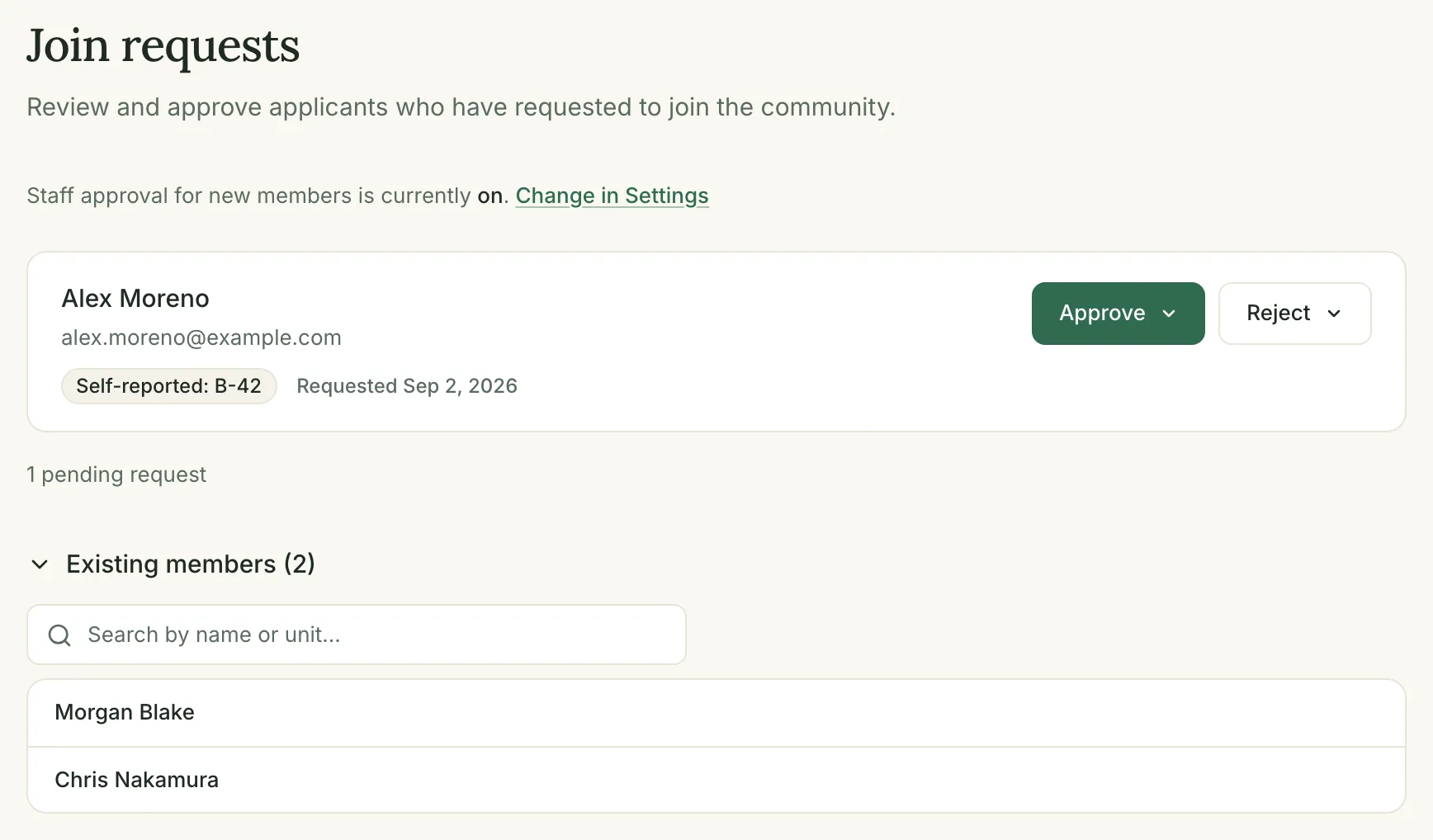
Under Settings, staff approval for new members decides what happens when someone joins through the join link. With it off, residents are active the moment they join. With it on, they land in Join Requests and see a pending screen until you approve them, and they get an email when you do. Direct invites skip approval either way, because you already chose to invite that person. If someone is waiting in Join Requests, sending them a direct invite approves them on the spot.
Before launch
Reciti launches your community with you on the agreed start date. Until then the join link shows a not-open-yet message and resident invitations are held, then sent together at launch. Invitations to administrators and board members go out right away, so you can get the rest of your board set up early. The Invite page lists outstanding invitations with a Resend button, and Members shows everyone who has joined.
5. Approve join requests
Some communities review each new member before activating them. If yours does, new residents appear under Join Requests with the name and unit they entered. Approve them, and set their unit at the same time if it's missing, or reject them with a reason. If your community doesn't review members, this queue stays empty and residents are active as soon as they join. The setting is under Settings.
6. Handle reservation requests
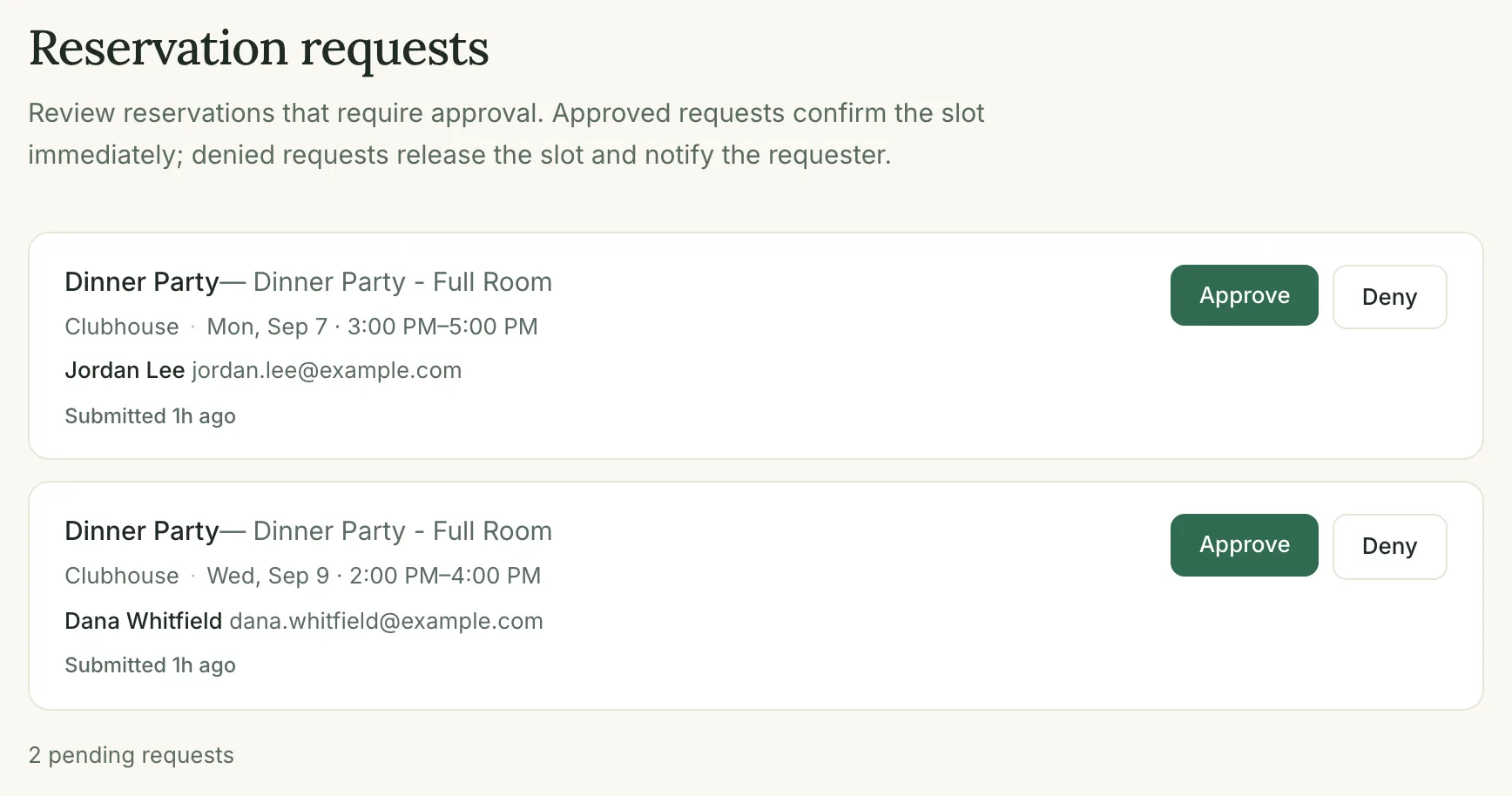
An activity can be set to require approval, which is common for a clubhouse or anything with a deposit. A resident's booking on one of those activities holds the time as a request and shows up under Reservation Requests. Approve it, or deny it with a short note. The resident gets an email either way.
7. Block off time
For maintenance, a private event, or a holiday, add a Blackout on the amenity for the dates and times. If reservations already exist in that window, Reciti lists them before you confirm, cancels them, and emails each resident with a message you write.
8. Book for a resident
Administrators can book on a resident's behalf from the amenity calendar, and can set up a recurring series, for example a weekly swim class or a standing board meeting. Residents can't create recurring reservations themselves.
Where to get help
Residents come to you for accounts, units, and rules. For anything about the software, write to support@reciti.app.
Common questions
Can residents see who booked a slot?
No. Residents see that a time is taken. Administrators see the resident's name on the calendar and in the reservation lists.
Can I change a resident's reservation?
Yes. Administrators can reschedule or cancel any reservation. Cancelling someone else's reservation asks for a short reason, which is emailed to the resident.
A resident says they can't get in
Open Members and search for their email address. If they show as invited but not yet joined, resend the invitation from the Invite page. If they joined through the link and approval is on, they're waiting in Join Requests. If they never received anything, ask them to check spam, and confirm that the address you have matches the one they're using.
How do I hand off to a new manager?
Invite them from Members, then Invite, and choose the Administrator role. Once they've joined, they can adjust your role or deactivate your account. An administrator can't change their own role.
What happens at launch?
Reciti launches your community with you on the agreed start date. Until then residents can't join and held invitations don't send. After launch, everything is live for residents.