Once you've joined your community, a reservation takes a few taps. This page goes through a first reservation from start to finish, with a picture of each screen, and then covers how to change or cancel one.
1. Pick an amenity
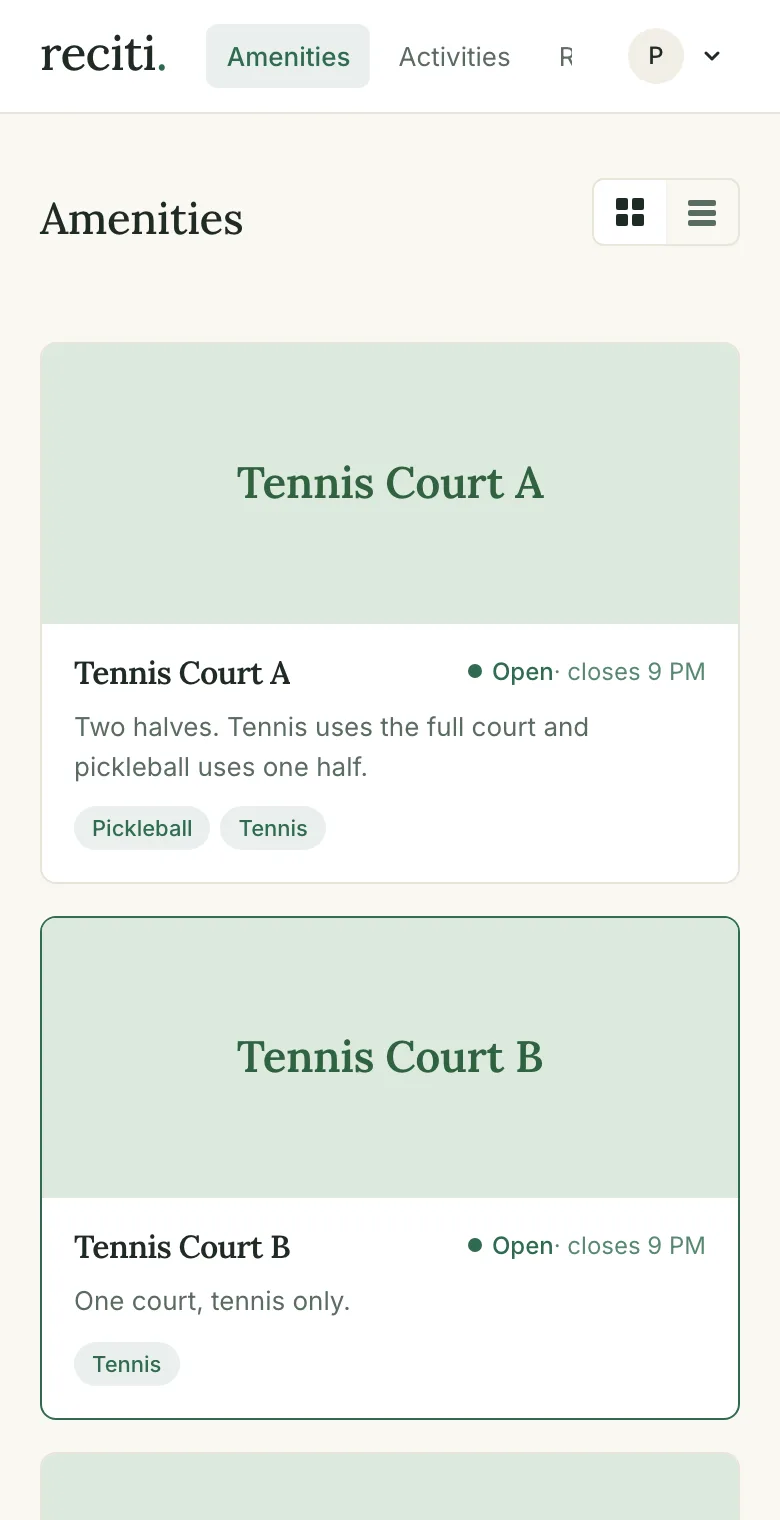
Sign in and open your community's Amenities page. Each card is a space you can reserve, such as a court or the clubhouse, and shows whether it's open right now. Tap a card to open its calendar.
2. Choose an activity
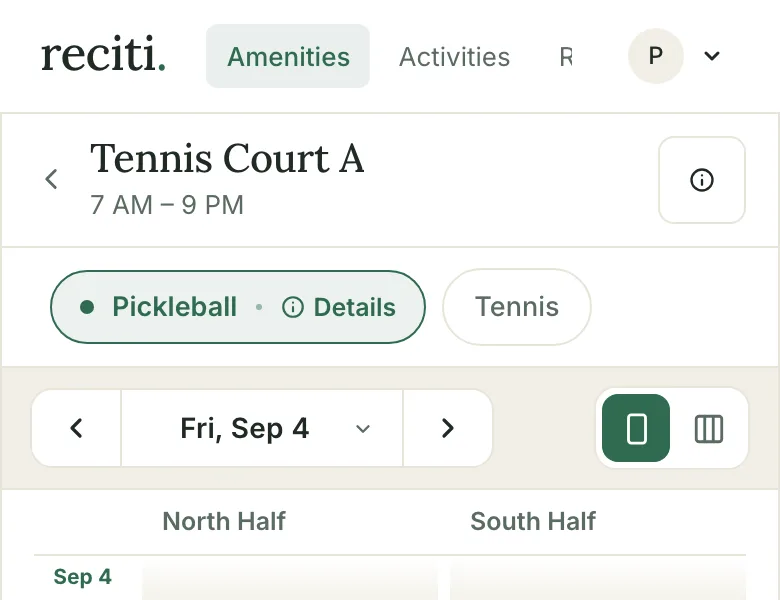
Above the calendar is a row of activity buttons. When an amenity supports more than one activity, for example tennis and pickleball on the same court, tap the one you want. The selected activity shows a dot and a Details link, and the calendar then shows availability for that activity, including which parts of the amenity it uses.
3. Find an open time
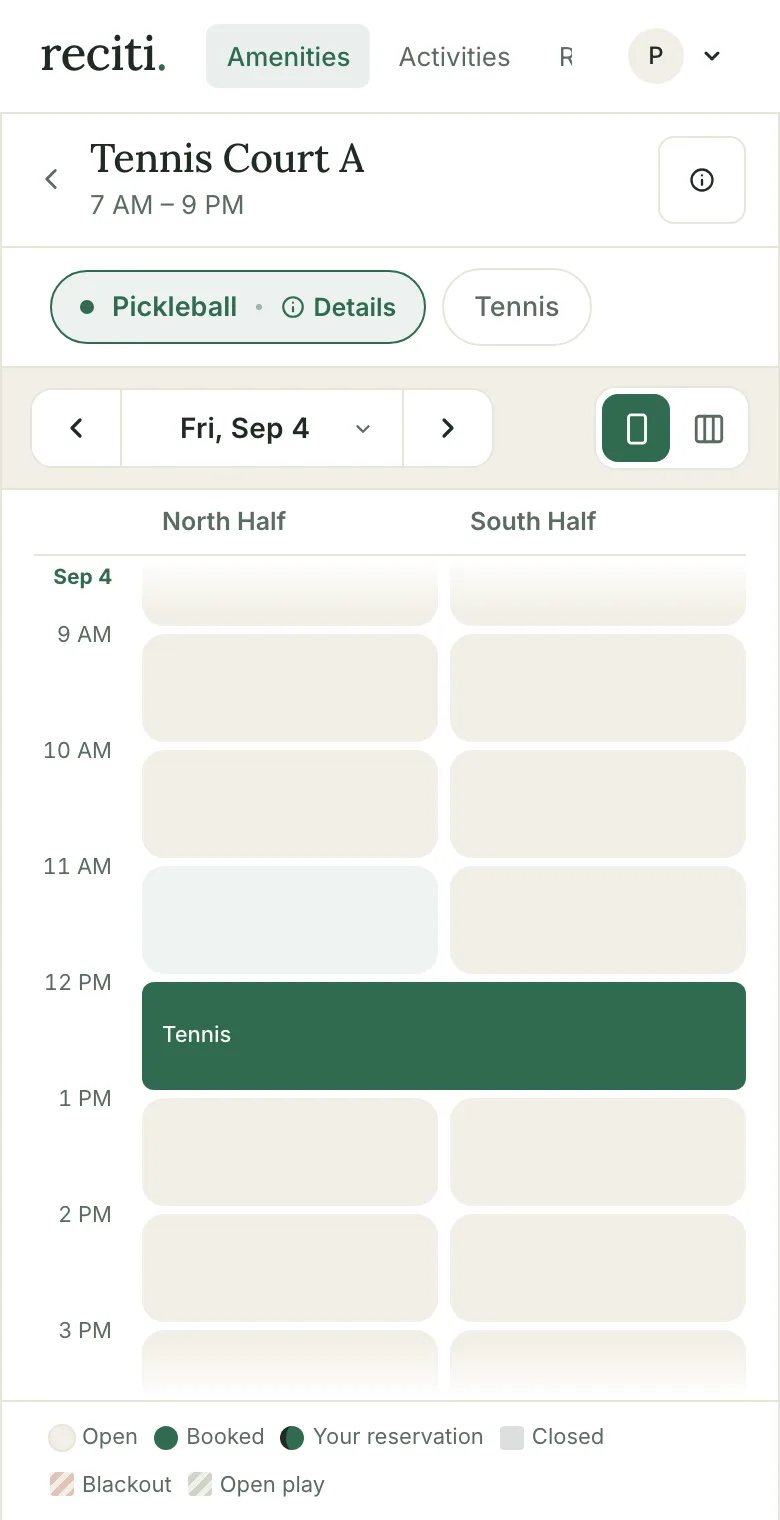
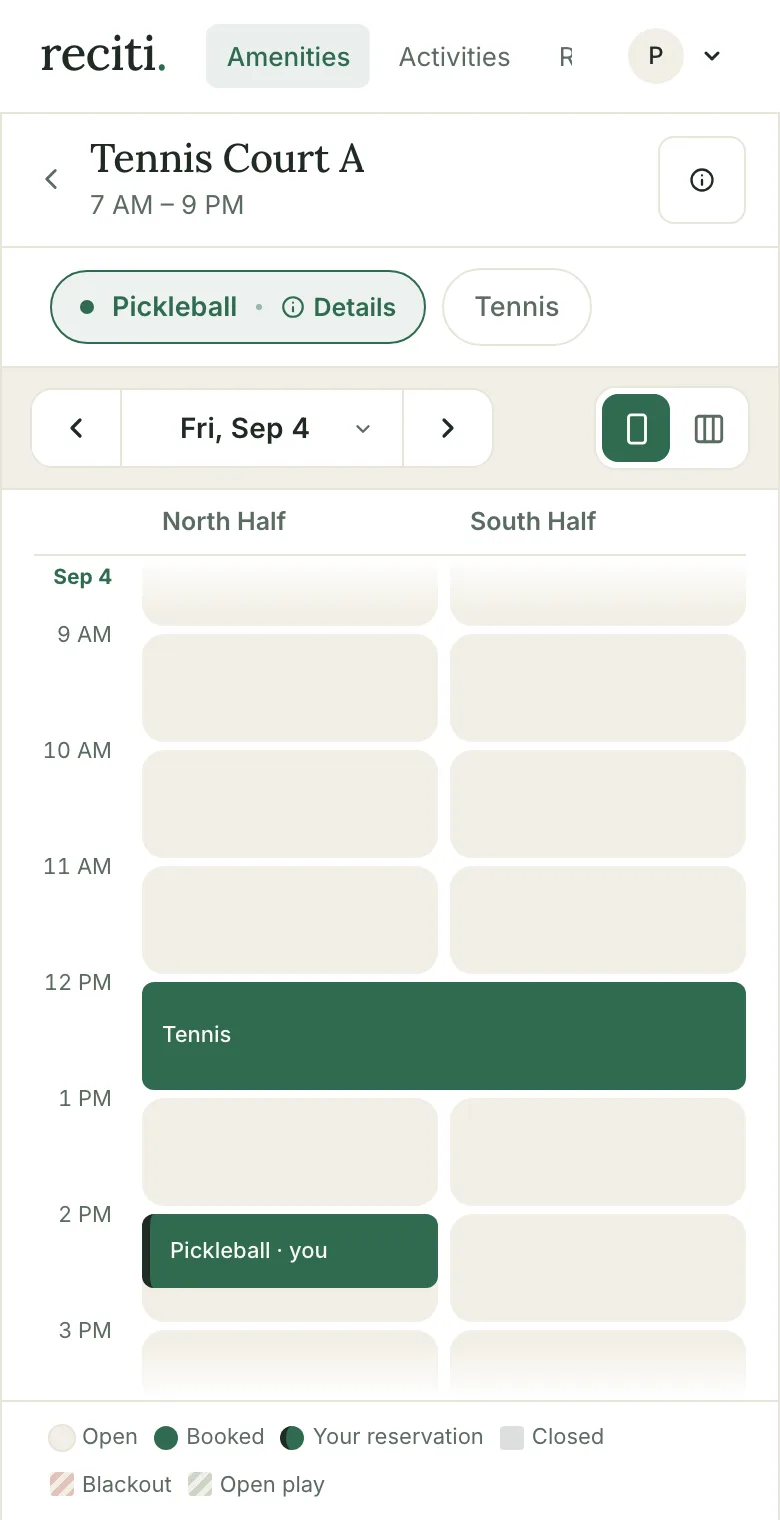
The calendar shows one day at a time, with a column for each part of the amenity. Open times are the light tiles. Times someone has already reserved are dark green, and times when the amenity is closed are grey. The legend at the bottom of the screen explains each color. Scroll down to move later in the day. If you keep going you'll reach the next day, or use the arrows beside the date to jump between days.
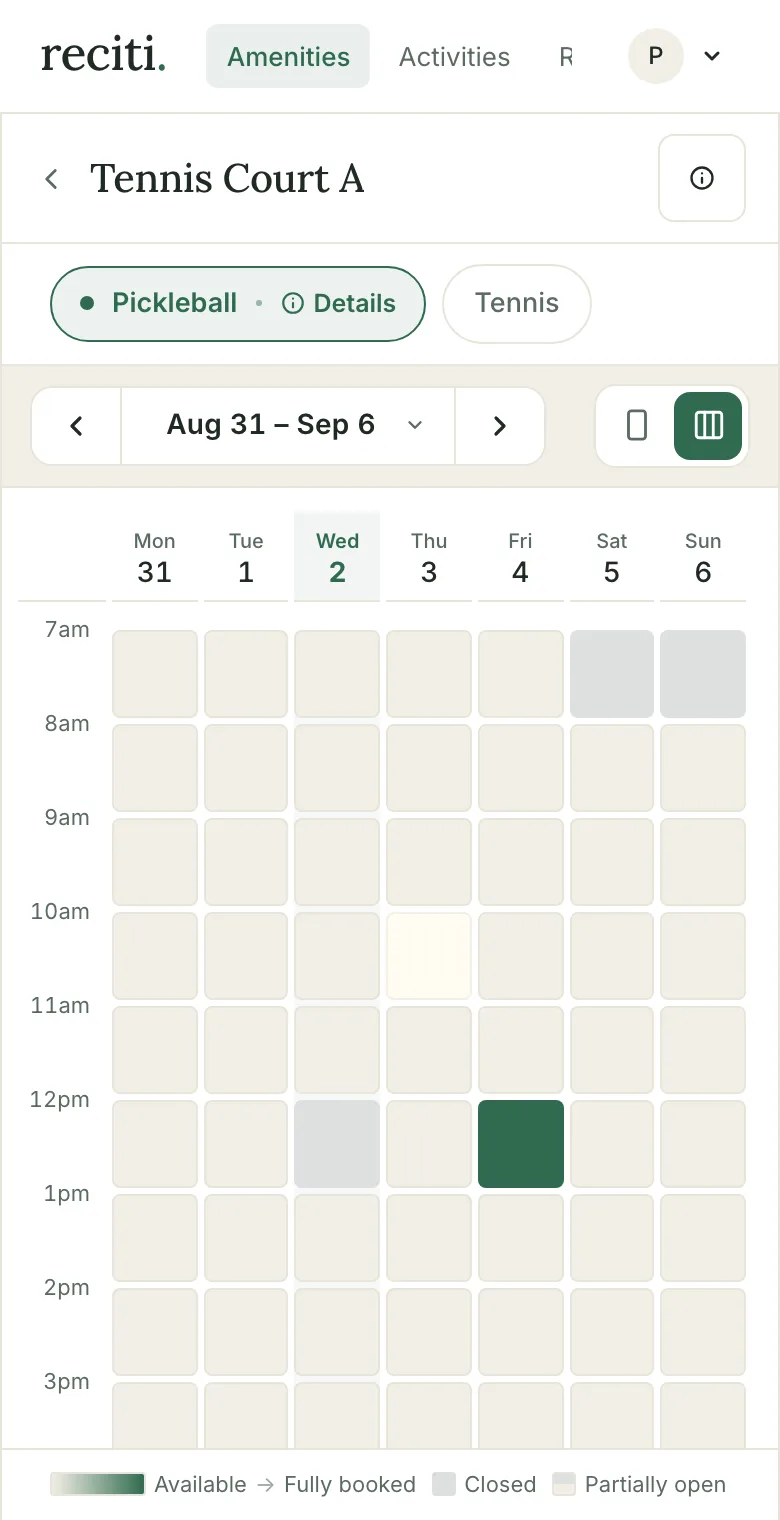
The two small icons to the right of the date switch between Day view and Week view. Week view shows at a glance when the amenity is busy and when it's quiet. Tap any day there to open it.
4. Select your time
Tap an open tile at the time you want. A booking bar appears at the bottom of the screen with the activity and the time you picked.
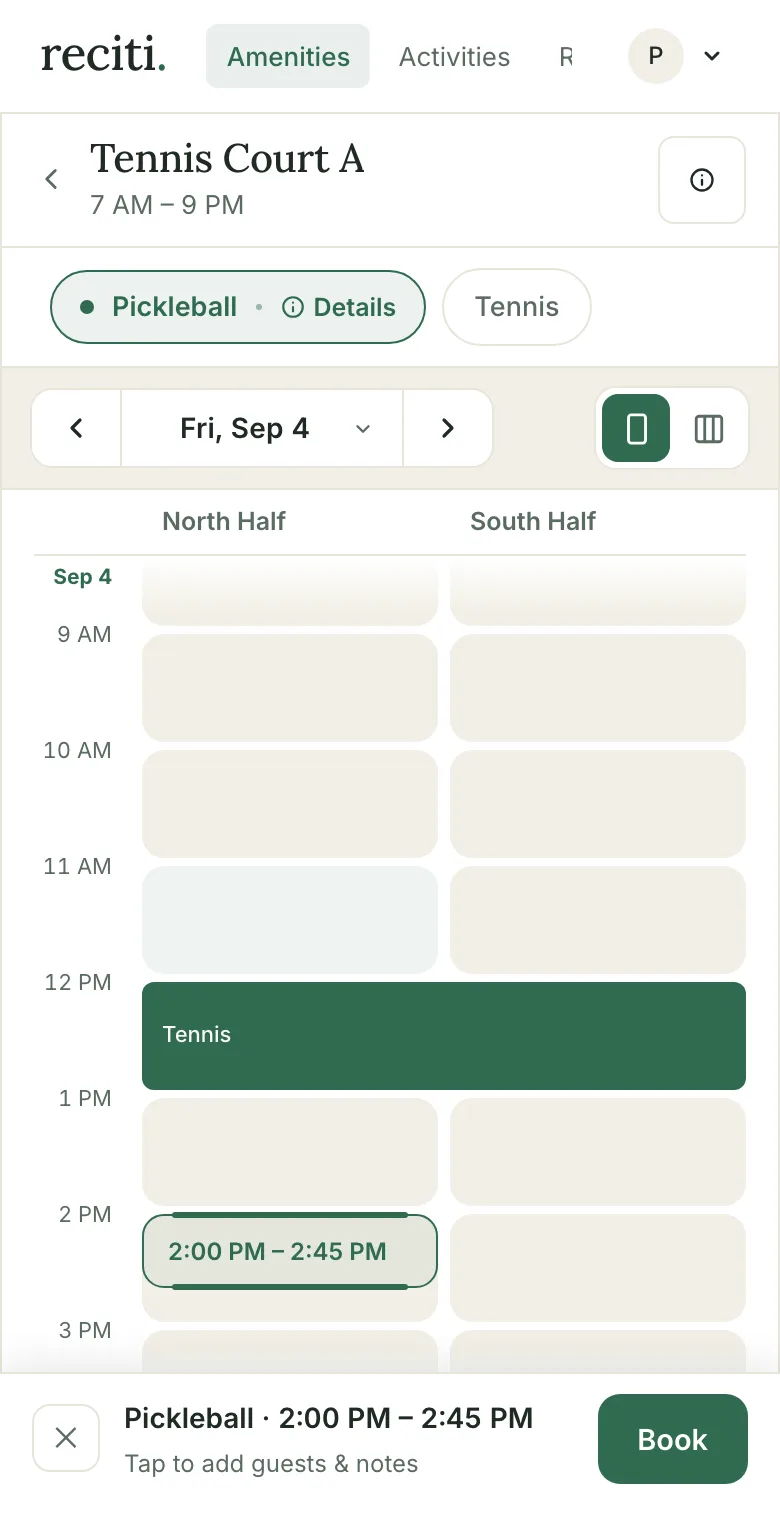
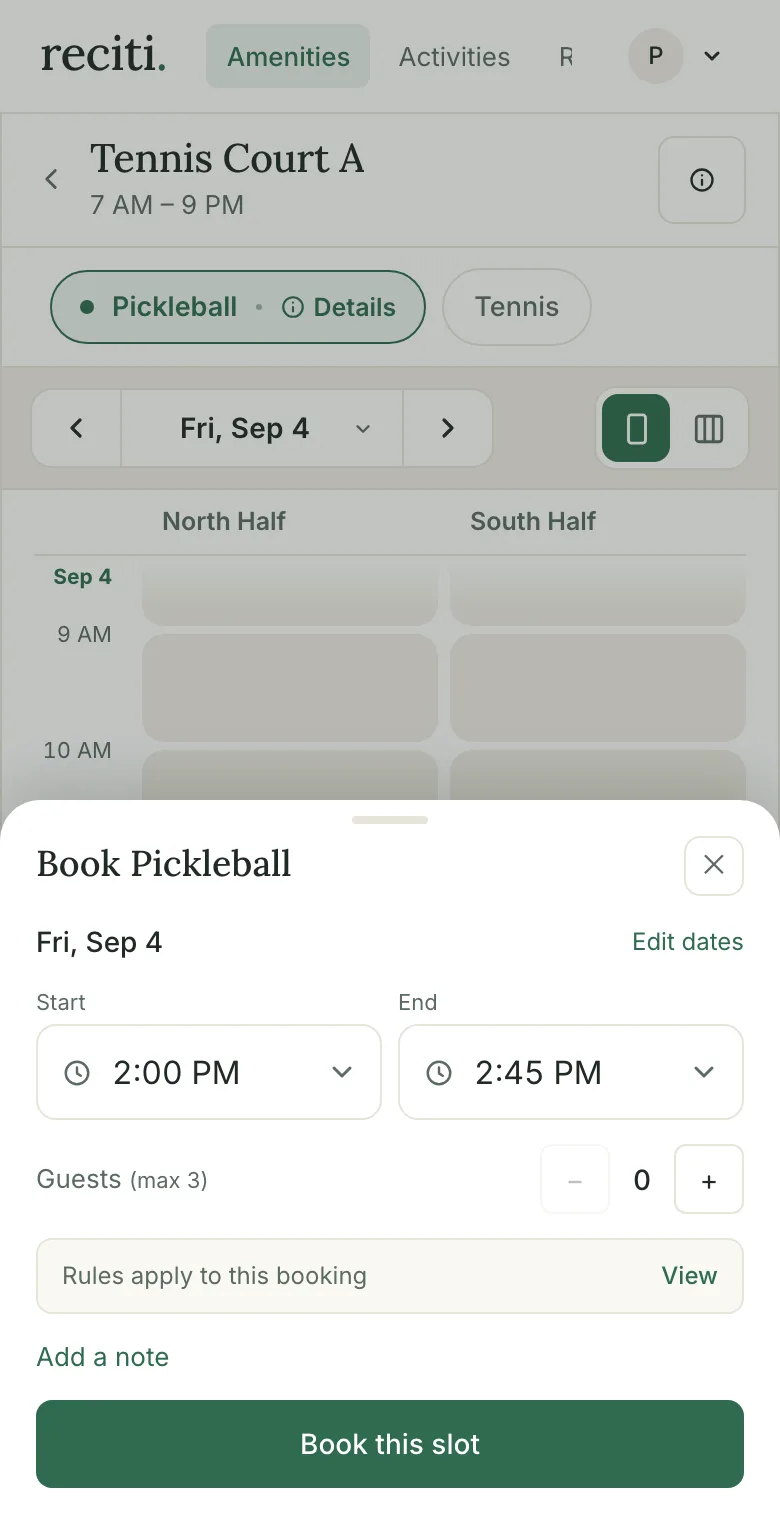
Tap the bar to open the booking details. Here you can adjust your start and end times, which move in 15-minute steps, and enter how many guests are coming if the activity allows them.
On a computer, click an open tile, or click and drag across the time you want, and the booking panel opens next to the calendar instead.
5. Book it
Tap Book this slot. Your reservation shows on the calendar right away, marked with "you", and a confirmation email is sent to you.
Some activities need approval first. For those, the button says Submit request instead. Your request holds the time while it's pending, and you'll get an email once your community approves it.
Managing your reservations
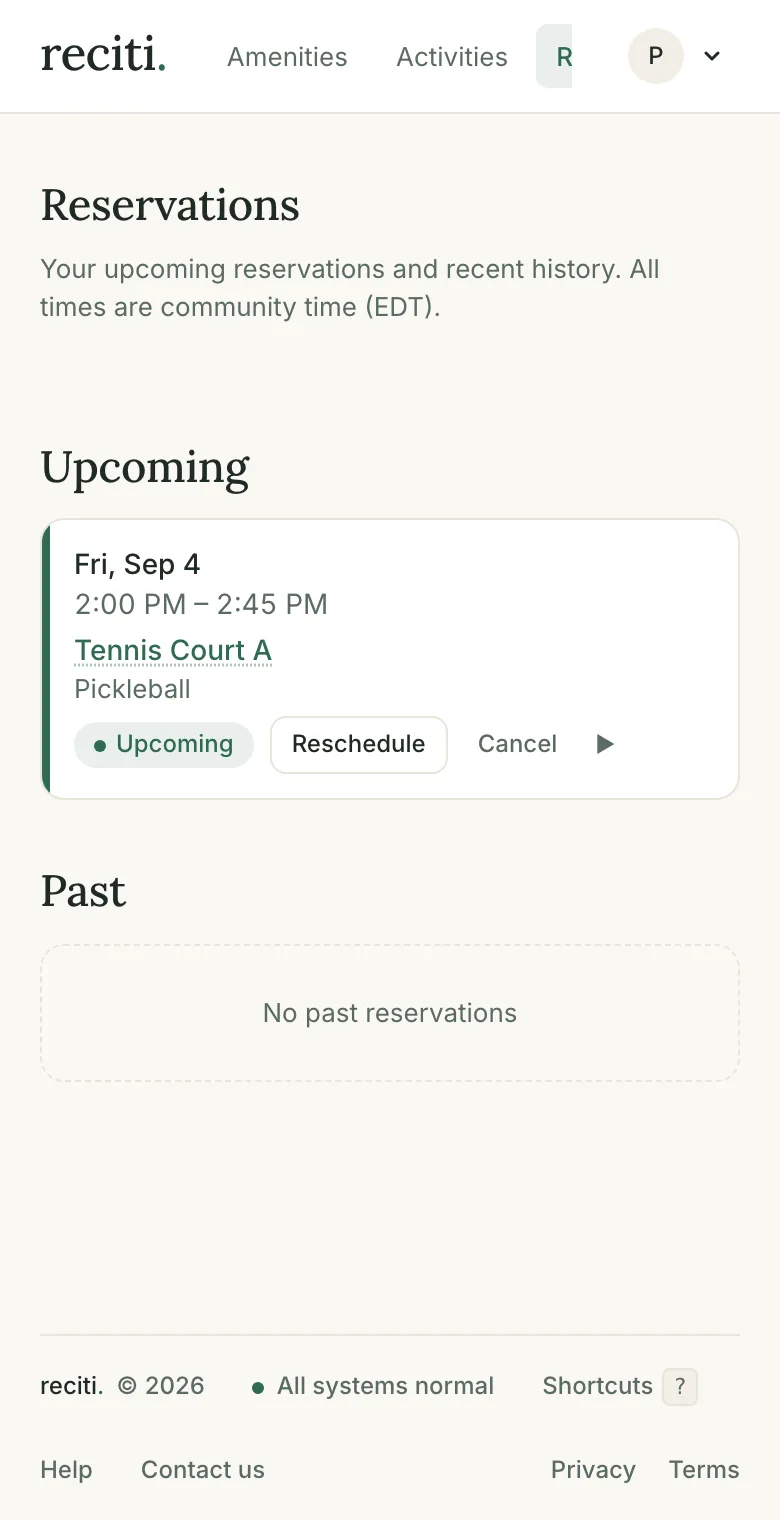
The Reservations page, in the menu at the top, lists everything you have coming up with Reschedule and Cancel buttons on each one. Rescheduling lets you pick a new time on the same calendar, and the same community rules apply to the new time. If your plans change, cancelling early frees the time up for a neighbor.
Common questions
Why can't I book a certain time?
The most common reasons are that someone else already has the time or that the amenity is closed at that hour. Maintenance blocks and open play periods also show as unavailable. Open play means first come, first served, with no reservation needed. All of these are marked on the calendar before you tap anything. A few community rules, such as minimum advance notice or your personal booking limits, are only checked when you submit. If one of those applies, Reciti tells you which rule it was.
Is there a limit to how much I can book?
Each community sets its own limits, such as hours per day or reservations per week, so that everyone gets a fair share. If a reservation would go over your limit, Reciti tells you when you try to book it. Your community's manager can explain the specific rules.
What if I need to cancel?
Open the Reservations page and tap Cancel on the reservation. Your community may have its own expectations about how far in advance to cancel, so when in doubt, do it as early as you can.
Can I bring guests?
Many activities allow guests, up to a limit set for each activity. You enter the number of guests in the booking details before you book. Guest policies come from your community's rules.